During a call: mute, hold, transfer, park and switch device
Every control on the call bar, what it does, and when to use it.
Written By Axel Molist
Last updated About 1 month ago
When a call connects, a small bar appears under the calls bar with the caller, a timer and the controls. Everything you can do to a live call starts there.

The bar
Recording dot and timer. A red dot means the call is being recorded. The timer is how long you've been connected.
... (actions) opens the menu below.
Mute silences your microphone. Click again to unmute.
Switch device moves the call to another device you're signed in on.
Transfer sends the call to a colleague or an outside number.
Hang up ends the call.
The actions menu
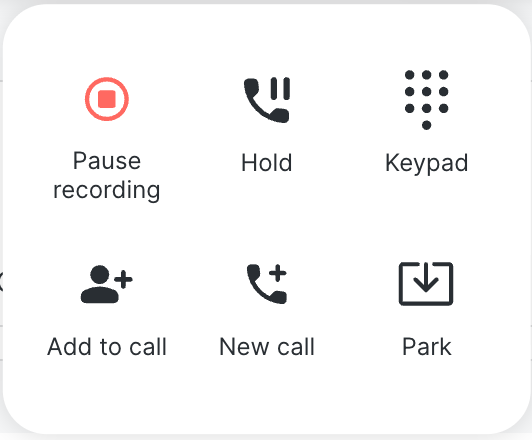
Pause recording stops recording while a customer reads out card details, say, and turns into Resume recording. Available on Plus and Unlimited.
Hold puts the caller on hold; they hear your account's music on hold. The button becomes Resume.
Keypad opens a dial pad for menus that ask you to press a key.
Add to call brings a third person into the call.
New call starts a second call while the first is held.
Park puts the call in a shared parking slot so a colleague can pick it up from any device.
Transfer a call
Click the transfer icon. The bar becomes a search box, and the live call shrinks to a chip on the right.
Type a colleague's name or an outside number and choose them.
The call goes to them. To back out before that, press
Escor click the chip to return to the call.

Switch device
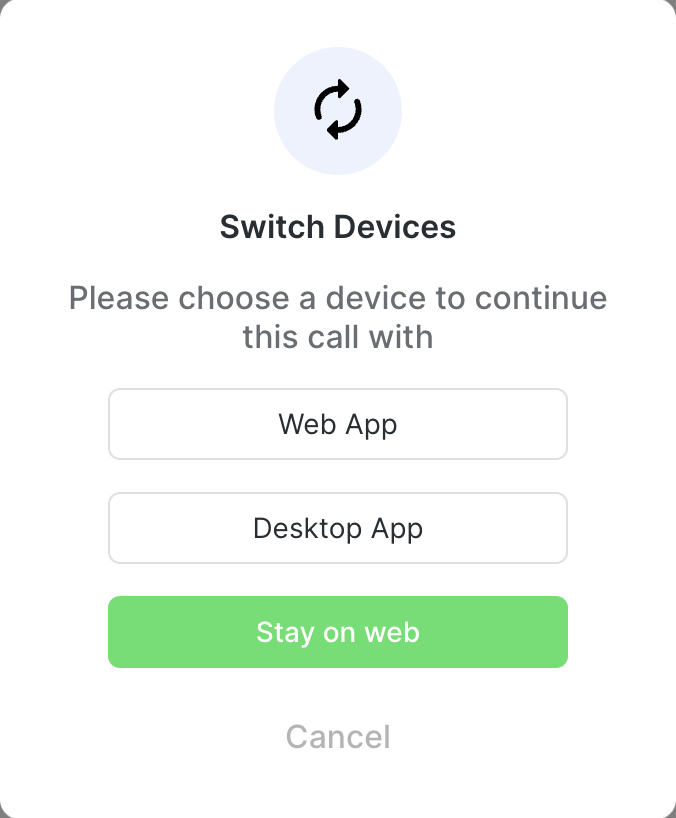
Click the switch device icon and choose where to continue: another device you're signed in on, or Stay on web to change your mind. The call only leaves the first device once the second has picked up.
Park and pick up
Park is for handing a call to someone who isn't next to you. Choose Park from the actions menu and the call leaves your bar and waits, with music, in the account's park zone. A colleague retrieves it from their desk phone or app. Park needs to be switched on for the account under Global settings > Allowed features.
Good to know
Everything here works the same in the desktop app. On a desk phone, the handset's own keys do the equivalent.
The recording carries on through hold, transfer and switch device, as one recording in History.
Call waiting: a second incoming call while you're on one is answered from the same bar; the first goes on hold.
Related
Was this helpful?
Still need help? Ask the team