Build your first call flow
Pick a number, add opening hours, ring a group when you're open and take a voicemail when you're closed.
Written By Axel Molist
Last updated About 1 month ago
In ten minutes you can have your main number ringing the right people in office hours and taking a message outside them. This walks through that flow step by step.
Before you start
You need to be an admin, and you need at least one number on the account. If the number is currently assigned to a person, the flow will take it over when you go live.
1. Start a new flow
Go to Settings > Call flows and click New call flow.
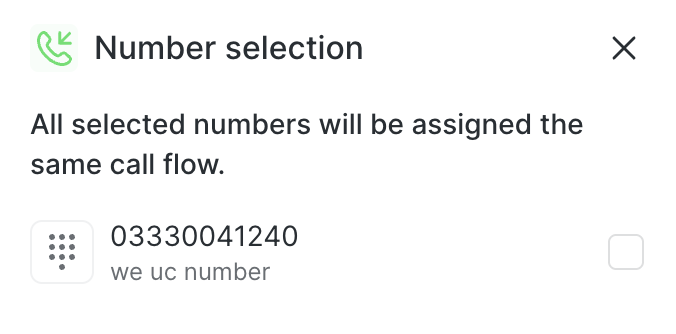
Tick the number, or numbers, this flow should answer. They'll all follow the same flow. Click Next.
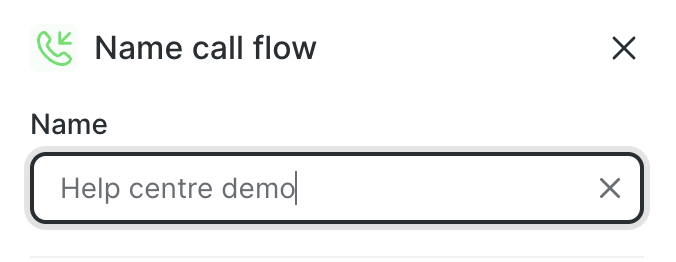
Give the flow a name that says what it's for, such as "Main line", and click Let's go!.
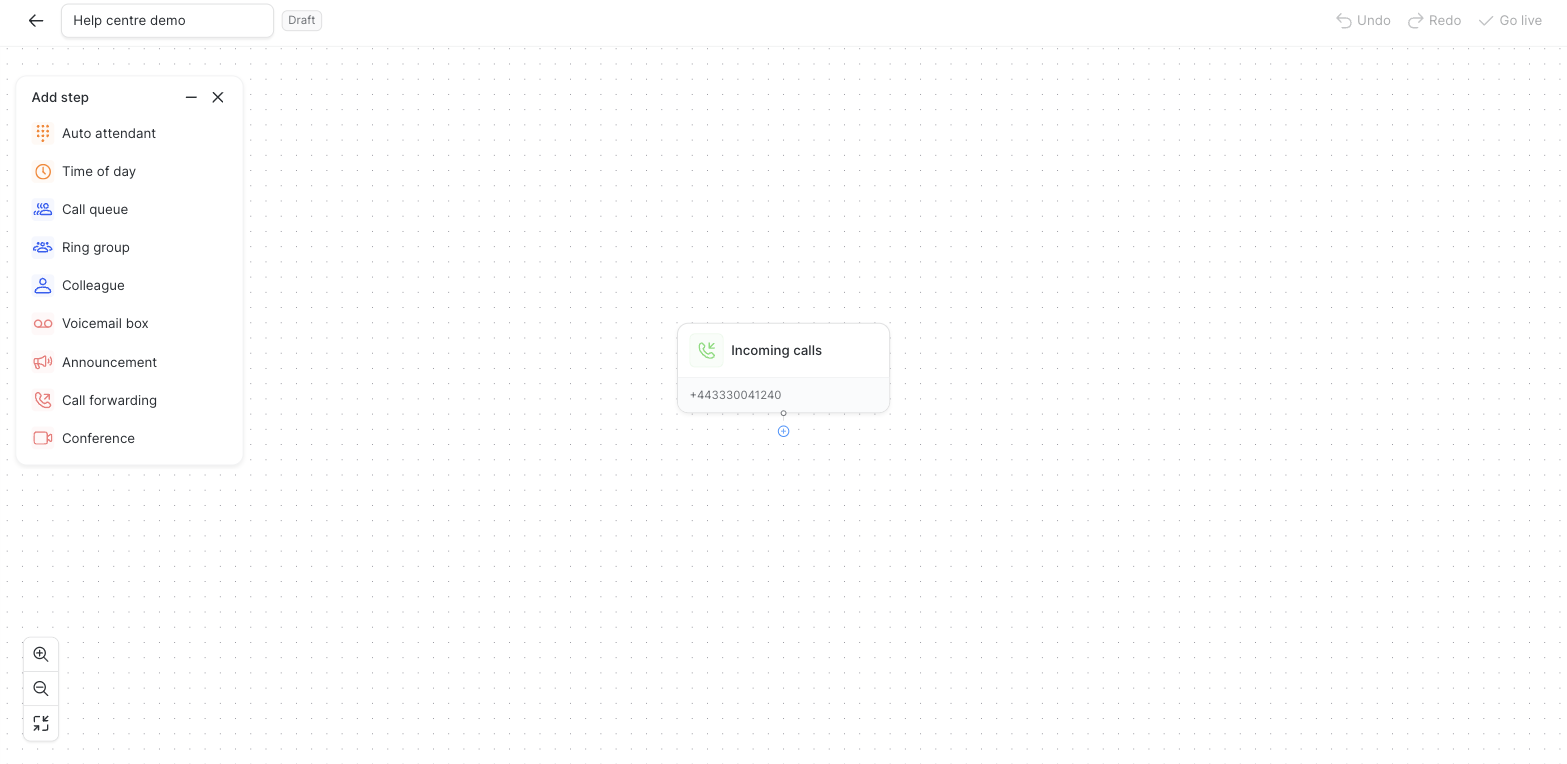
You land on the editor. The number sits at the top as Incoming calls, and the Add step list is on the left.
2. Add opening hours
With Incoming calls selected, click Time of day in the Add step list.
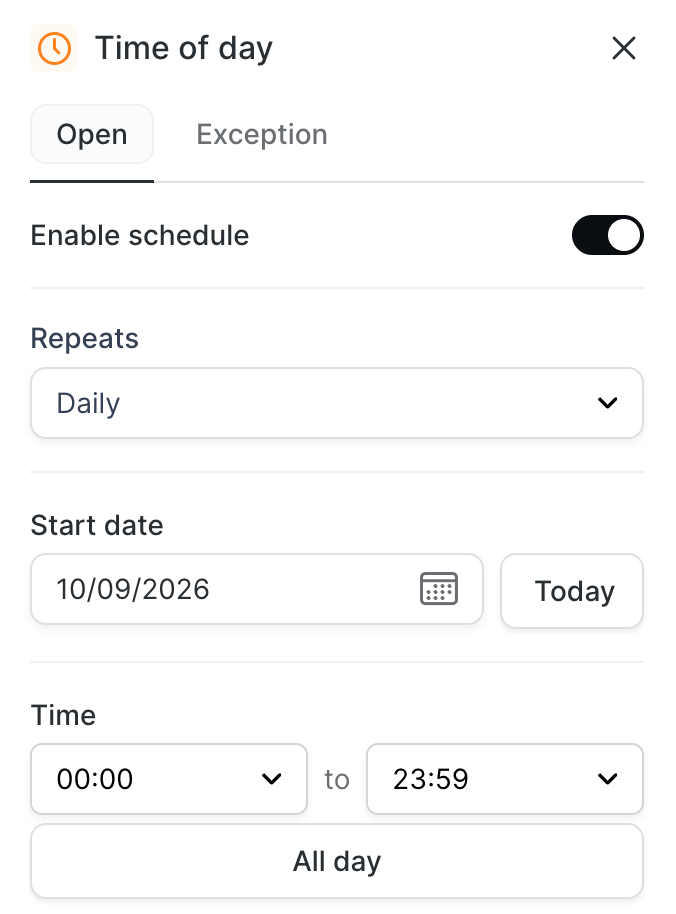
In the panel on the right, keep Enable schedule on, set Repeats to Daily, and set the Time to your opening hours, for example 09:00 to 17:30. All day is for numbers that are always open.
Click Save.
The step now has two branches underneath it: Open and Closed.
3. Ring the team when you're open
Click the Open branch, then click Ring group in the Add step list.
Choose New ring group.
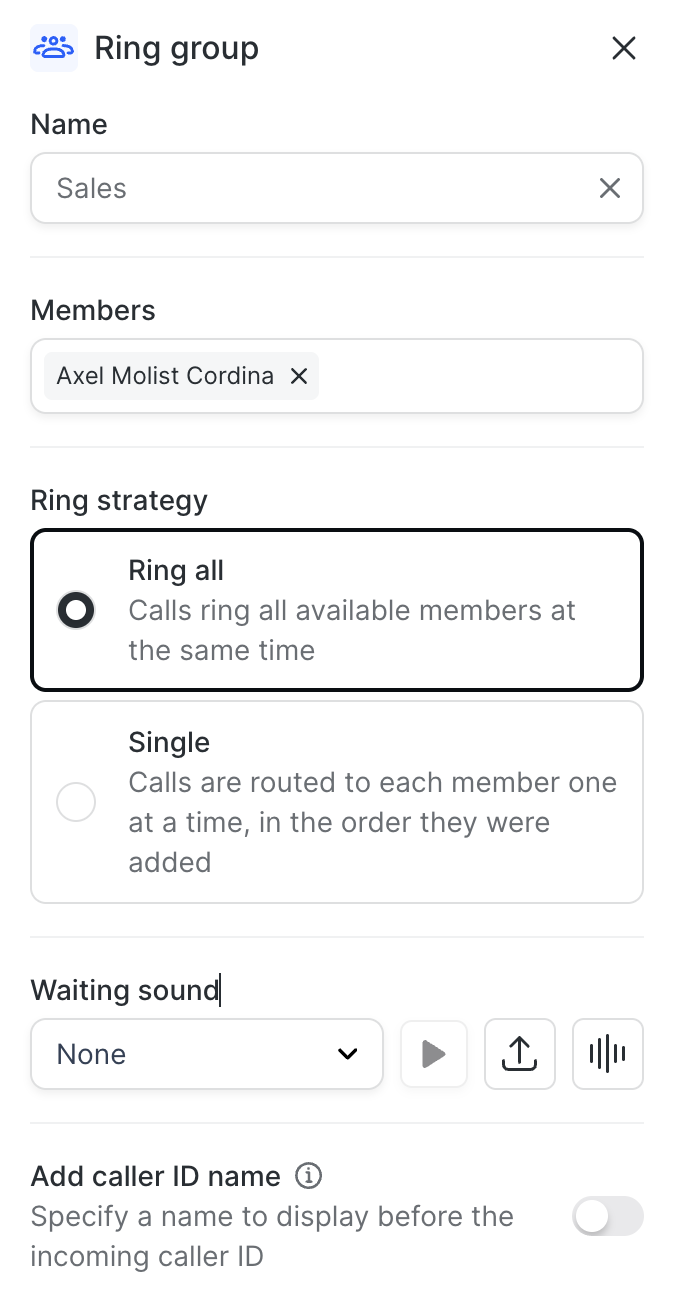
Name it, then search and add the colleagues who should answer.
Pick a Ring strategy. Ring all rings everyone at once. Single tries them one at a time in the order you added them.
Click Save.
4. Take a message when you're closed
Click the Closed branch, then click Voicemail box.
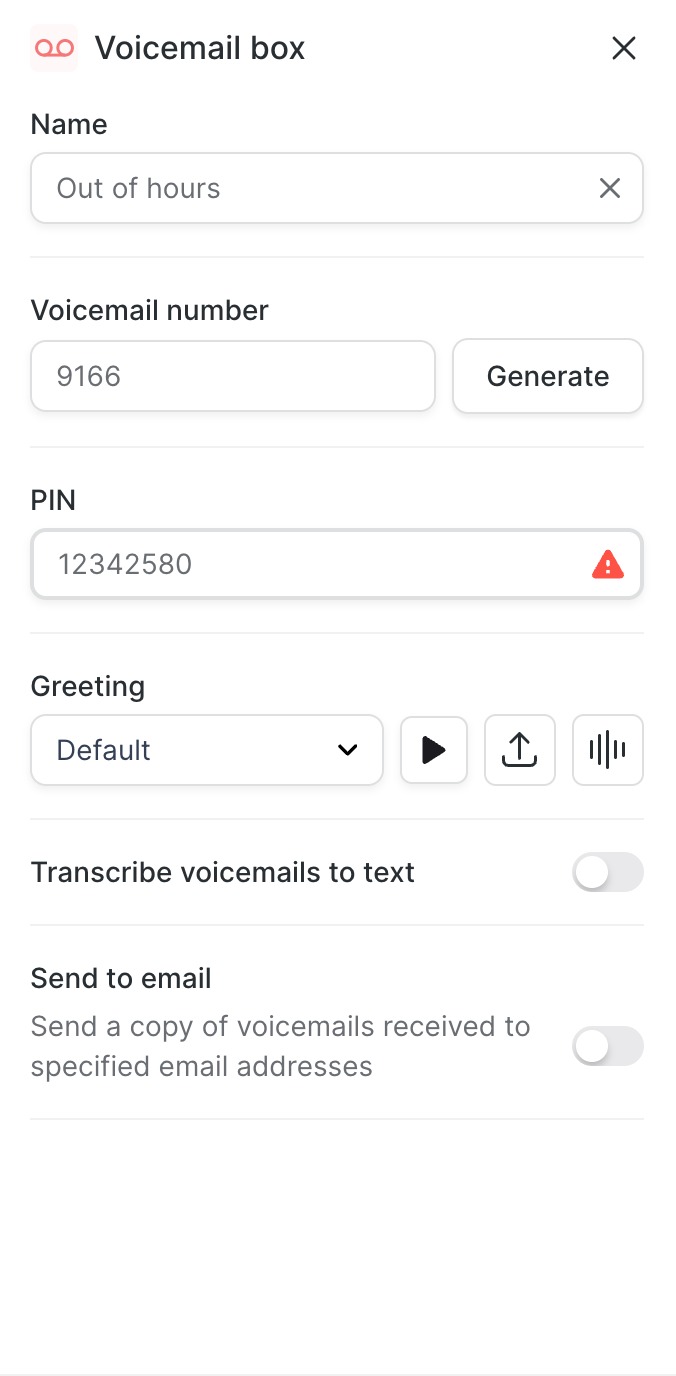
Pick an existing box, or choose New voicemail and give it a name, a mailbox number (click Generate) and a four-digit PIN. Turn on Transcribe voicemails to text if you want messages as text, and Send to email to have them emailed.
Click Save.
5. Go live
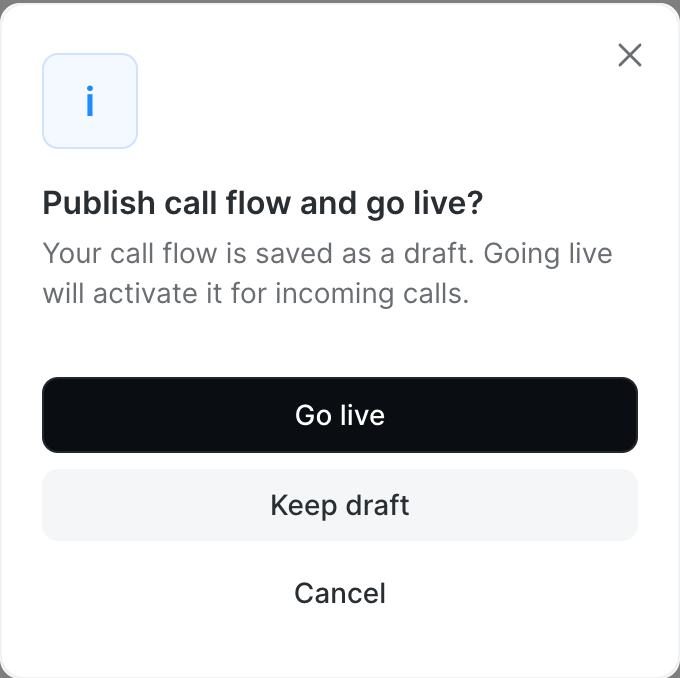
Click Go live at the top right. Olatti asks you to confirm; choose Go live to start routing calls, or Keep draft to save your work and come back later.
Ring the number from a mobile to check it. In hours, the group rings. Out of hours, you hear the voicemail greeting.
Good to know
Undo and Redo at the top of the editor work on every change, so experiment freely before you go live.
To change a step later, click its box. To remove one, select it and use the delete option in its panel.
A ring group's members can also be edited from Call flows > Components, and the change reaches every flow that uses it.
If nobody in the ring group answers, add a Voicemail box under the ring group so the caller isn't left hanging.
Related
Was this helpful?
Still need help? Ask the team