Ring groups
Ring several colleagues at once or one after another, and reuse the group across call flows.
Written By Axel Molist
Last updated About 1 month ago
A ring group is a set of colleagues who share incoming calls. Add one to a call flow and every member's devices ring, together or in turn, until someone picks up.
Create a ring group
In a call flow, select the step the calls will come from, then click Ring group in the Add step list.
Choose New ring group, or pick an existing one from the list.
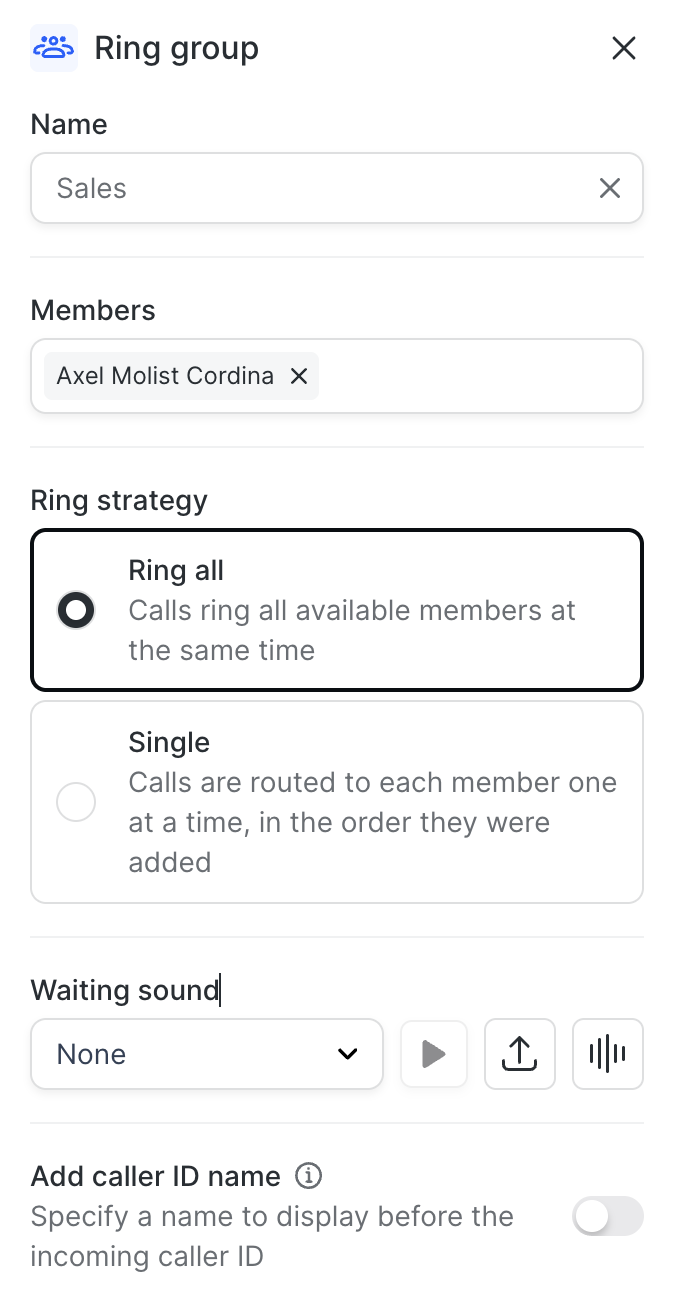
Give it a Name callers will never see but you will, such as "Sales" or "Reception".
Under Members, search for colleagues and add them.
Choose a Ring strategy:
- Ring all rings every available member at the same time. First to answer takes the call.
- Single rings members one at a time, in the order you added them.
Waiting sound is what the caller hears while it rings. Leave it as None for normal ringing, pick a sound, or upload your own.
Turn on Add caller ID name if you want the group's name shown before the caller's number, so people know which line is ringing.
Click Save.
Edit a ring group later
Open it from any flow that uses it, or from Settings > Call flows > Components. Changes to a ring group apply straight away to every call flow that uses it, whether or not you publish the flow you're editing. The panel warns you of this at the top.
Good to know
A member's own settings still apply. If someone has Divert when offline set, or has turned a device off in their call sequence, the group respects that.
If nobody answers, the call carries on to whatever step sits below the ring group. Add a Voicemail box there so callers can leave a message.
For long queues where callers wait their turn, use a Call queue step instead.
Related
Was this helpful?
Still need help? Ask the team