Use the voice assistant
Hold a key, say who you want to call, and let go. Turn it on and choose the key in the desktop app.
Written By Axel Molist
Last updated About 1 month ago
Hold a key, say "Call Tom", let go. Olatti finds Tom and rings him. It works from anywhere on your desktop, and it takes one setting to turn on.
Turn it on
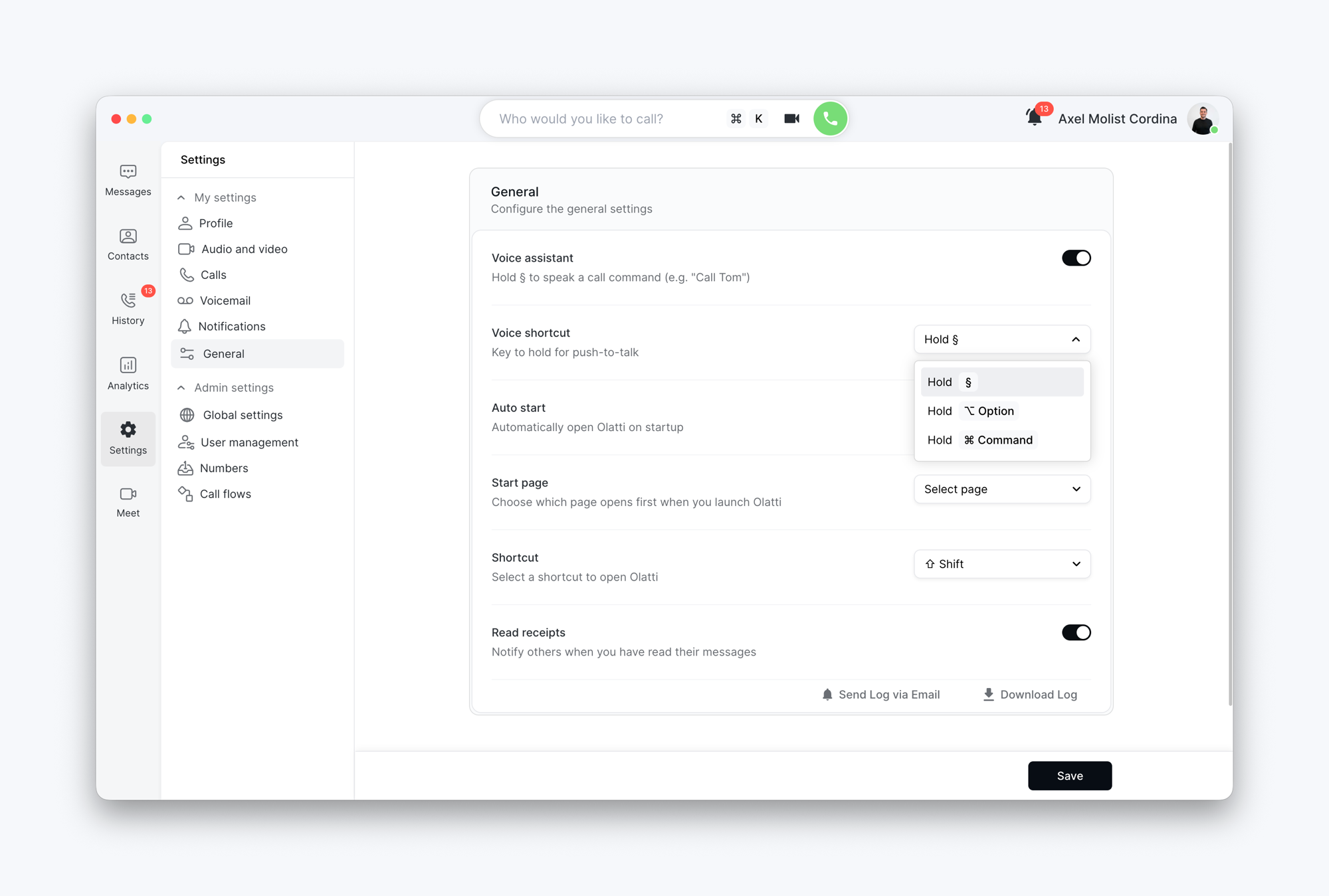
In the Olatti desktop app, go to Settings > General.
Switch on Voice assistant.
Voice shortcut appears underneath. It's the key you hold while you speak. On a Mac the default is § (top left, under Esc), with ⌥ Option and ⌘ Command as alternatives. On Windows it's ` (backtick), or Right Alt.
Click Save.
Make a call
Hold the voice shortcut key.
Say "Call" and the name, the way you'd say it to a colleague: "Call Tom Reilly", "Call Harbour Architects".
Let go. Olatti shows what it heard and dials.
If more than one contact matches, Olatti shows the options so you can pick. If it didn't catch the name, it tells you, and you hold the key and try again.
Good to know
The voice assistant is a desktop app feature. Your voice is processed on Olatti's own infrastructure in the UK, the same as call transcription. Nothing goes to a third-party speech service.
Your microphone needs to be set up. Check it under Settings > Audio and video if the assistant hears nothing.
The key you use for the summon key is removed from the voice shortcut list, so the two can't clash.
Names that are hard to say are hard to hear. If a contact never matches, try the company name instead, or use
⌘Kand type.
Related
Was this helpful?
Still need help? Ask the team