Notification settings
Choose what Olatti tells you about, with what sound, on which device, and when.
Written By Axel Molist
Last updated About 1 month ago
Notifications are set per person under Settings > Notifications. You choose which events get a banner and a sound, whether your mobile buzzes when you're already at your desk, and when Olatti should stay quiet.
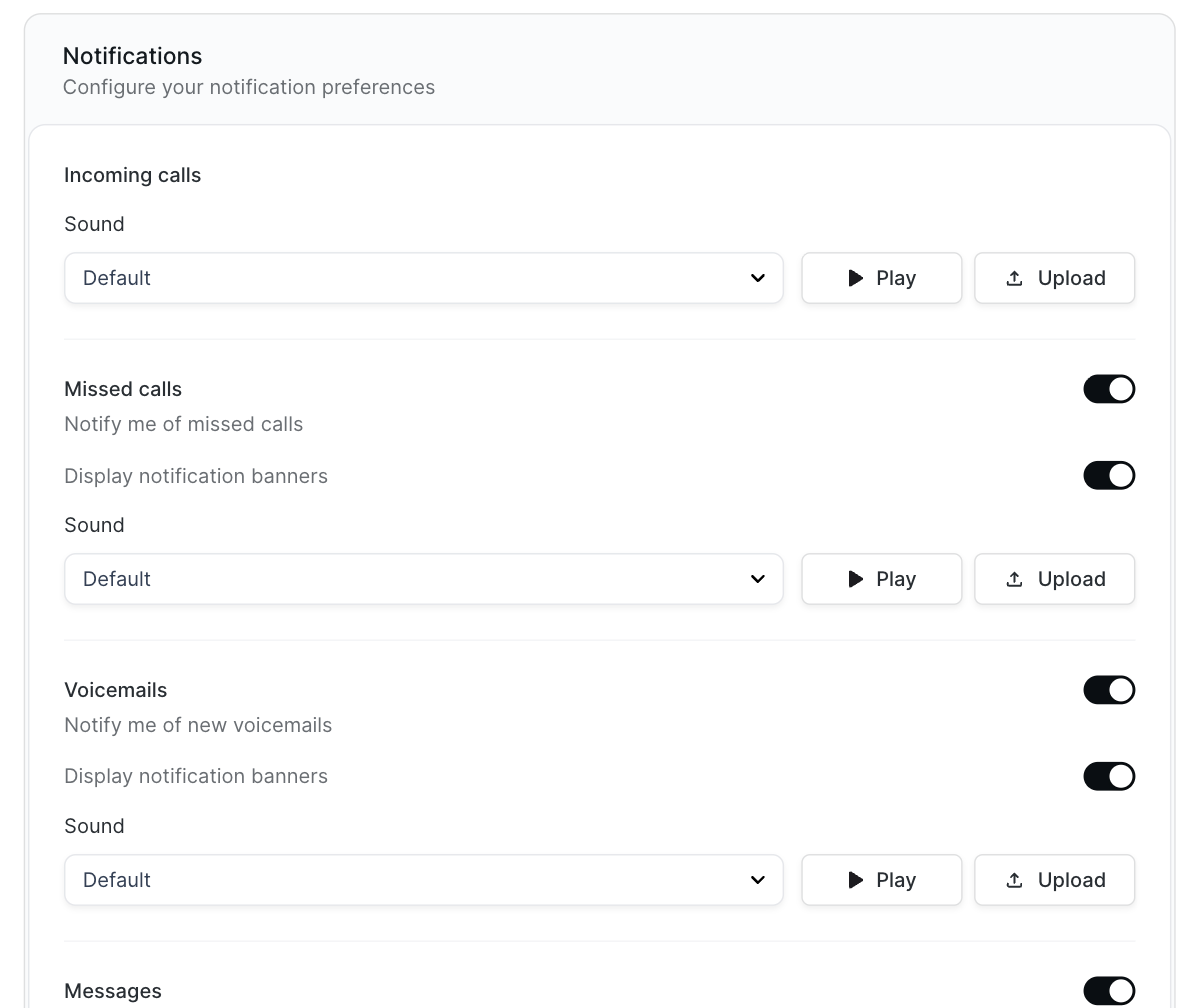
What you can be told about
Incoming calls: the ring. Pick a Sound, hear it with Play, or Upload your own.
Missed calls: a banner and sound when you miss one.
Voicemails: when a new message arrives.
Messages: new direct messages and channel messages, with a choice of all new messages or fewer.
Each has a switch, a Display notification banners switch, and a sound.
Where you're told
Browser notifications show a system notification when the Olatti tab is in the background. Your browser will ask permission the first time.
Notifications indicator shows the count of unread items on the icons.
Mobile notifications: turn on "Don't notify me on mobile if I'm active on the web or desktop app" and your phone stays quiet while you're at your desk.
When you're told
Notifications window limits notifications to set days and hours, for example weekdays from 08:00 to 18:30. Outside it, calls still come through; you just don't get the banners and sounds for the rest.
Click Save when you're done.
Good to know
Your admin may have set defaults for the account. If a section is locked, ask them.
The ringtone's speaker is separate: Settings > Audio and video > Ringtone picks which device plays the ring.
Related
Was this helpful?
Still need help? Ask the team