Choose which devices ring, and for how long
Set the call sequence for your devices and divert calls when you're offline or busy.
Written By Axel Molist
Last updated About 1 month ago
Every device you've signed in to can ring when someone calls you. The call sequence in your settings decides which ones ring, and for how long, before the call goes to voicemail.
Steps
Go to Settings > Calls.
Scroll to Call sequence. Every device on your account is listed: the web app, the desktop app, your mobiles and any desk phone.
Under "How long should my phone ring for on incoming calls?", set a ring time for each device: 0, 15, 30, 45 or 60 seconds. A device set to 0 doesn't ring.
Click Save.
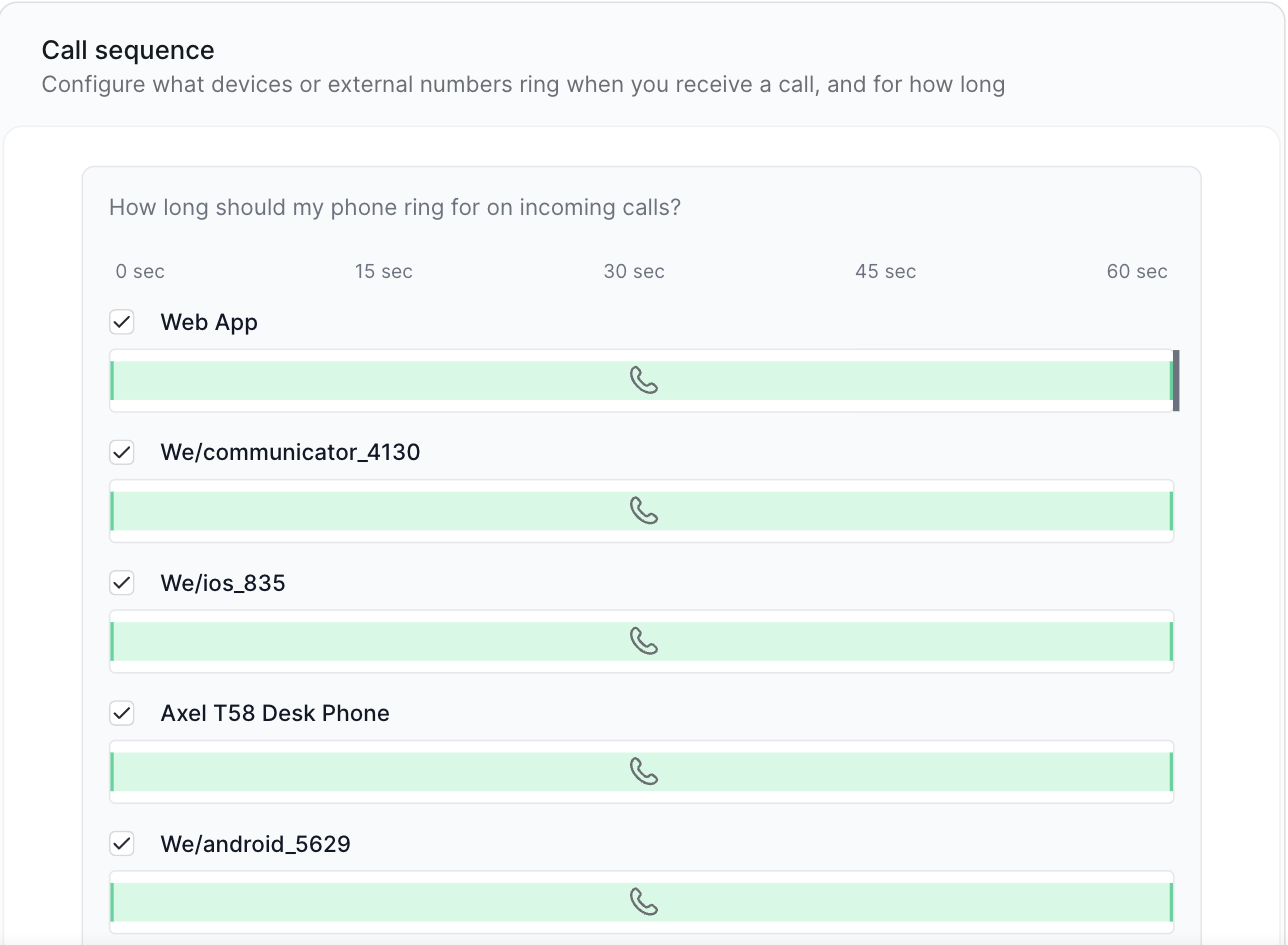
The total ringing time is shown under the list. When it runs out, the call goes to your voicemail box or to whatever divert you've set.
Divert your calls
The Call divert section on the same page has three switches:
Always divert sends every incoming call to a number of your choice, with its own ring time.
Divert when offline catches calls when you're not connected on any device. The default destination is your voicemail box.
Divert when busy forwards calls that arrive while you're already on one.
Turn on the one you want, fill in the destination and click Save.
Good to know
Call waiting is on by default, so a second call can come in while you're on the first. Turn it off under Call settings on the same page if you'd rather it went straight to divert.
Your admin may have set defaults for these options and can lock them. If a section says you can't edit it, ask your admin.
Related
Was this helpful?
Still need help? Ask the team