Set up a phone menu (auto attendant)
Play callers a greeting and let them press a key for sales, support or anyone else.
Written By Axel Molist
Last updated About 1 month ago
An auto attendant answers with a recording and lets the caller choose: "Press 1 for sales, 2 for support." Each key becomes a branch in your call flow, and you decide where each one goes.
Before you start
Record or prepare the greeting. It needs to say which keys do what, in the same order you'll set them up. Keep it short; callers who know where they're going will press before it finishes.
Steps
Open the flow under Settings > Call flows, select the step the menu should follow (often the Open branch of your opening hours), and click Auto attendant in the Add step list.
Choose New auto attendant.
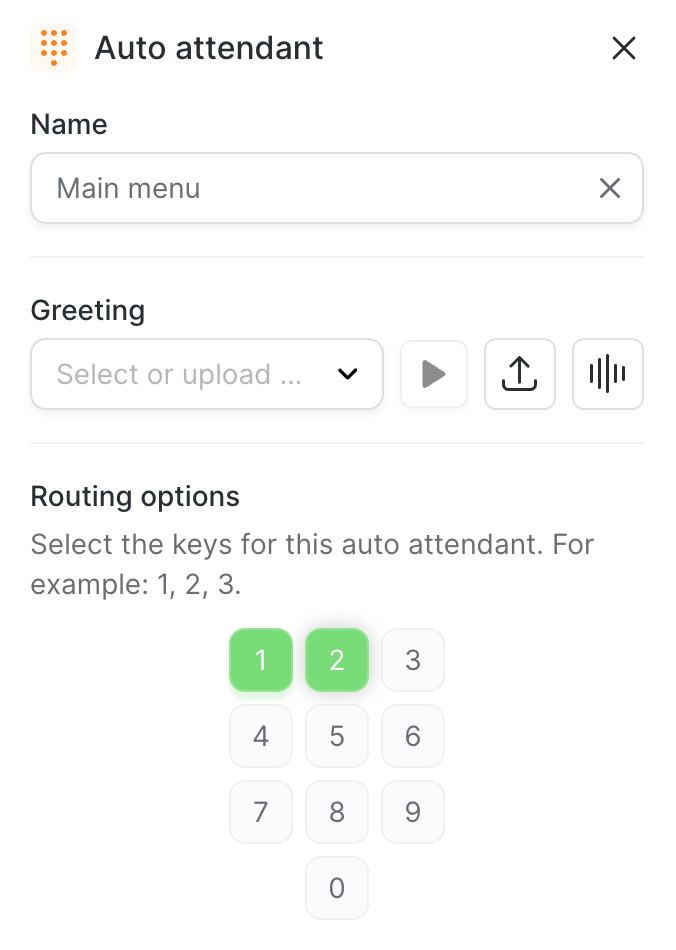
Give it a Name, such as "Main menu".
Under Greeting, pick a recording you've uploaded before, upload a new one with the upload icon, or record one now with the microphone icon. Press play to check it.
Under Routing options, click the keys you want callers to be able to press. Pick 1 and 2 for a two-way menu, more if you need them. 0 is a good choice for "anything else".
Click Save.
A branch appears under the menu for each key you chose. Click each branch and add where it goes: a ring group for a team, a colleague for one person, a voicemail box, or another auto attendant for a sub-menu.
A menu that works
Two or three options beat six. Every extra choice costs the caller a listen. If you need more, split them across a sub-menu.
Say the option, then the key. "For sales, press 1" is easier to act on than "Press 1 for sales", because the caller hears what they want before the number.
Give every key somewhere to go. A key with no branch does nothing when pressed.
Put a person at the end. Whatever the caller presses, they should be able to reach someone or leave a message.
Good to know
The menu is saved as a component, so you can reuse it in other flows from Call flows > Components.
Changes to a menu apply to every flow that uses it.
Nothing changes for callers until you click Go live on the flow.
Related
Was this helpful?
Still need help? Ask the team