How to send logs to our technical team
When a call or the app misbehaves, a log lets us see exactly what happened. Two clicks in the desktop app.
Written By Mariana Kundys
Last updated About 1 month ago
When a call drops, audio fails or the app does something odd, the log tells us what happened on your side. Sending it with your email means we can fix things without a round of questions.
From the desktop app
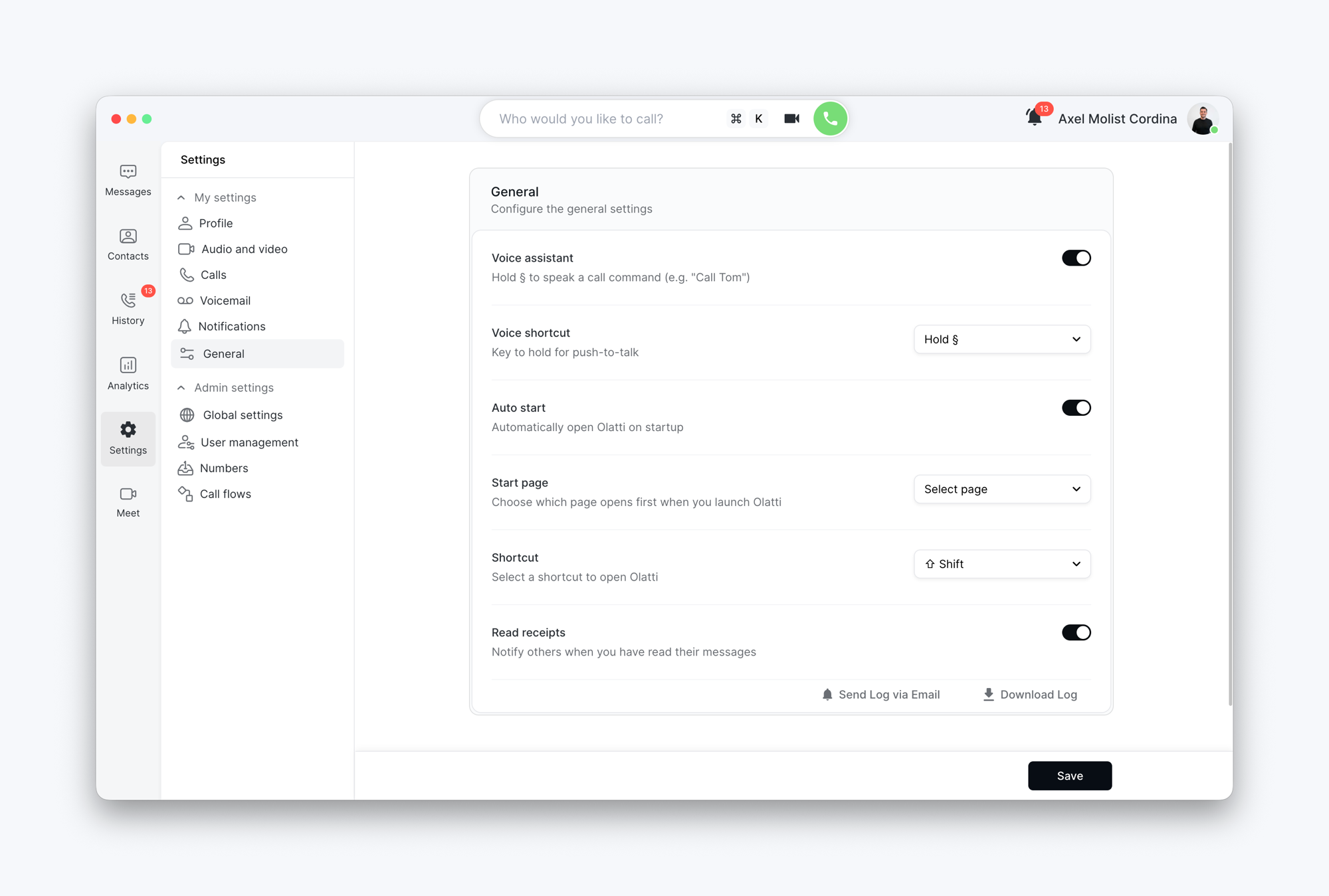
Go to Settings > General.
At the bottom of the page, click Send Log via Email. Your email app opens with the log attached; send it to support@olatti.com.
If email isn't set up on that computer, click Download Log instead and attach the file to a message to support@olatti.com.
What to say in the email
What you were doing: calling, answering, in a meeting.
What went wrong, in a sentence.
The number you called or were called from, and roughly when.
Good to know
The log covers the app's own activity: connection events, audio devices, errors. It doesn't contain your call audio or your messages.
Send it soon after the problem. Logs cover a limited period.
Related
Was this helpful?
Still need help? Ask the team