Set your summon key
Choose the key you press twice to bring Olatti to the front from any app, in the desktop app's General settings.
Written By Axel Molist
Last updated About 1 month ago
The summon key brings Olatti to the front from inside any other app. Press it twice, type a name, press Enter. It's a desktop app setting, and you can change which key it is.
Steps
In the Olatti desktop app, go to Settings > General.
Find Shortcut, "Select a shortcut to open Olatti".
Pick the key you want to press twice. On a Mac the choices are ⌘ Command, ⌃ Control, ⌥ Option, ⇧ Shift and Esc. On Windows they're Ctrl, Alt, Shift and Esc.
Click Save.
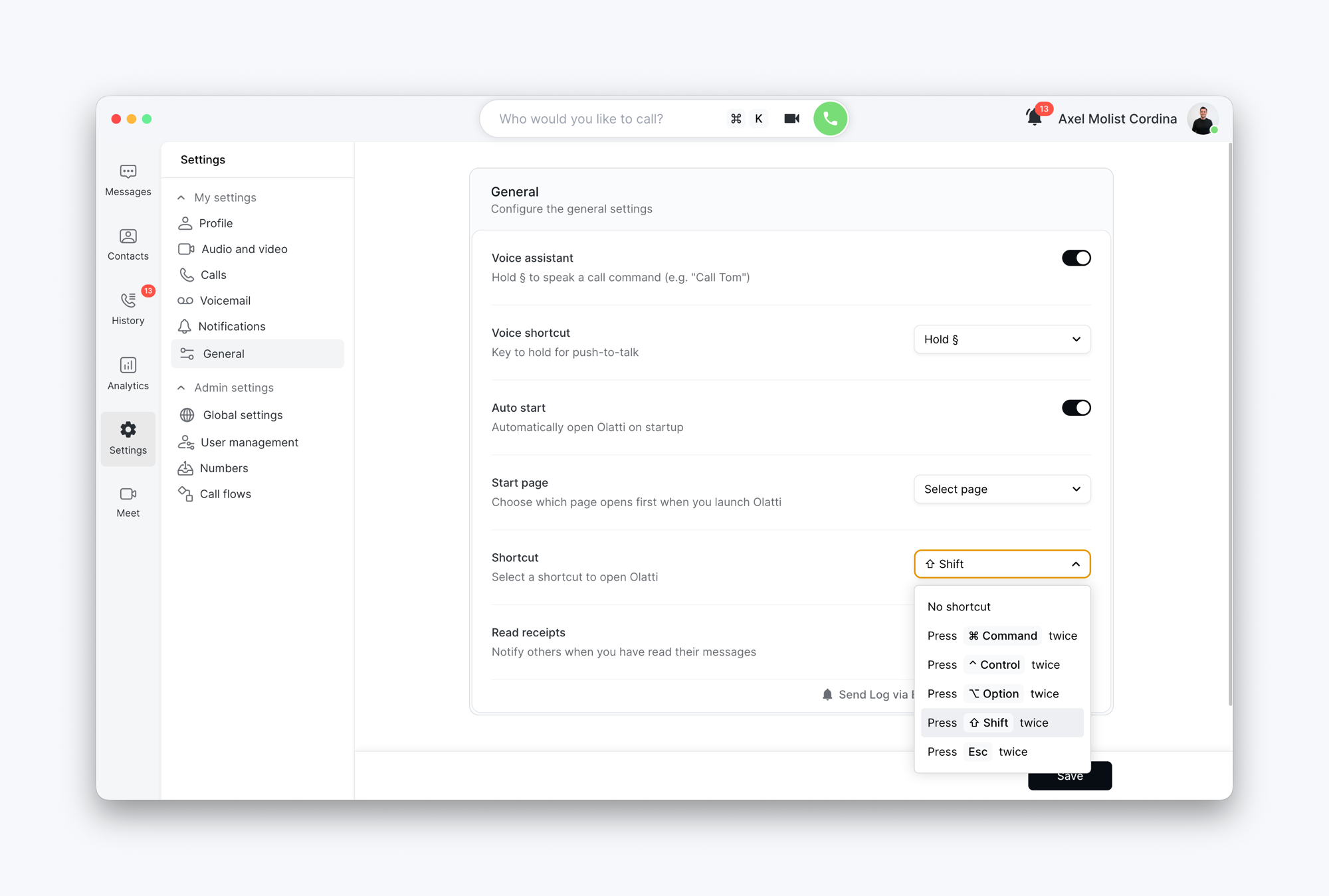
From then on, a double tap on that key brings Olatti forward wherever you are, with the calls bar ready. Type a name, Enter to call, Shift+Enter to message.
Pick a key you don't already double-tap
Shift is a good default: it's big, it's on both sides of the keyboard, and nothing else reacts to a double tap. Command works too, but if you use it for other double-tap shortcuts, choose something else. No shortcut turns the feature off.
Good to know
The summon key opens Olatti from other apps. Inside Olatti,
⌘K(orCtrl+K) jumps to the calls bar; you don't need both.The key you choose here is removed from the voice assistant's options, so the two can't clash.
Auto start, on the same page, opens Olatti when you log in to your computer, so the summon key works from the first minute.
This setting isn't in the web app or the mobile apps, because they can't be summoned from other apps.
Related
Was this helpful?
Still need help? Ask the team